
How to Edit Your Card
How to Use & Edit the Template
How to Edit Your Card
Step 1 — Open the Customizer
Find the product you’d like, then click the “Customize” button to open the design editor.
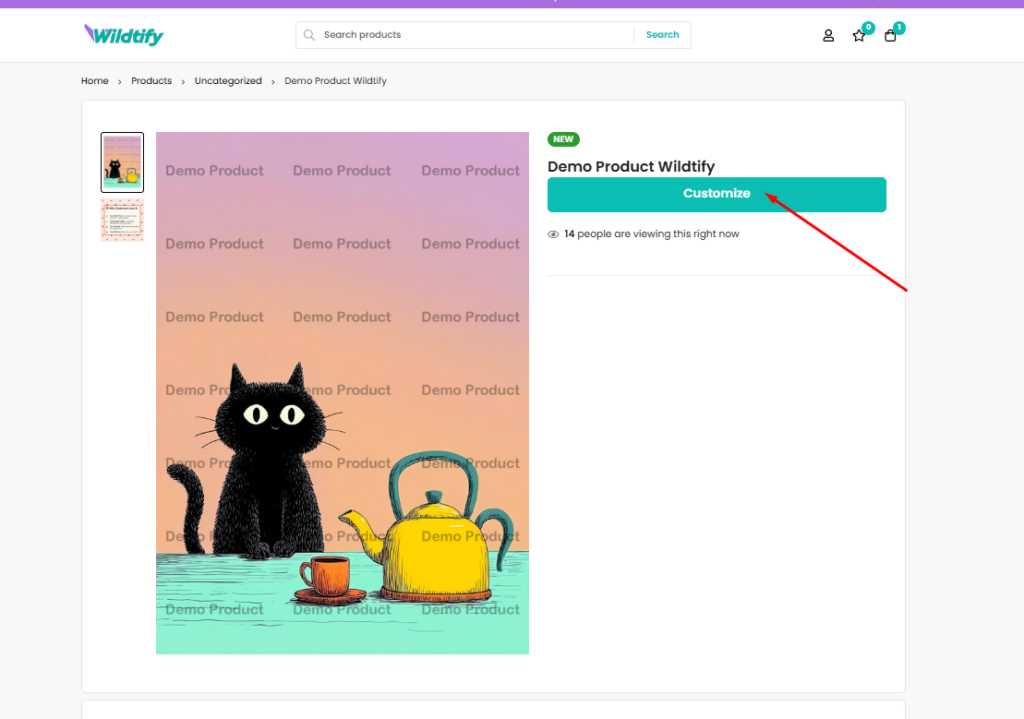
Step 2 — Edit Your Text
Click on any text element you want to change. Your edits can be made directly in the field shown below the canvas.
💡 Note: You must click on the text element first before making any changes.
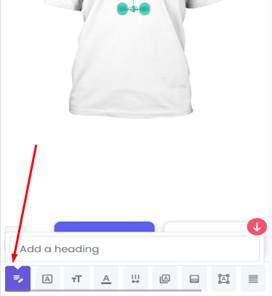
On mobile? Tap the text element first, then edit in the field below.
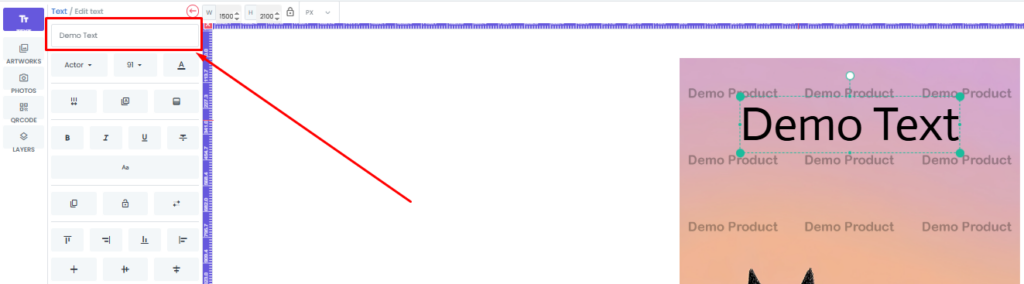
For mobile browsers, edit your text in the field shown below. Note: You must first tap on the text element before making any changes.
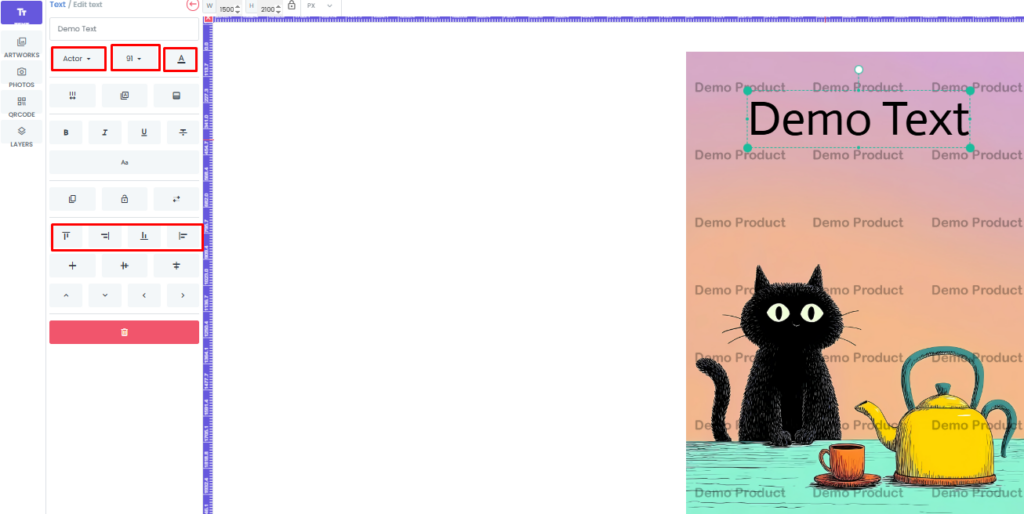
Step 3 — Style Your Text
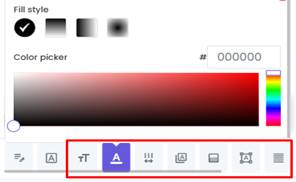
Using the toolbar, you can adjust:
Font — choose a style that fits your design
Text size — make it bigger or smaller
Color — pick any color using the color picker
Alignment — left, center, or right
Character spacing — fine-tune the spacing between letters
Drag it anywhere on the card
Change the content, font, size, and color
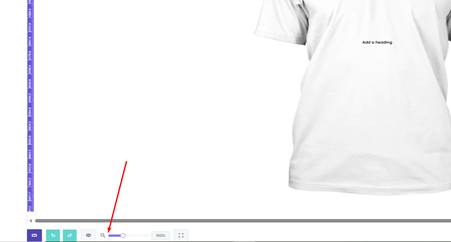
You can zoom in or out using the controls shown here (mobile browser).
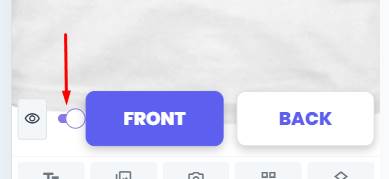
You can zoom in or out using the controls shown here (desktop browser).
Step 4 — Add Extra Text Layers
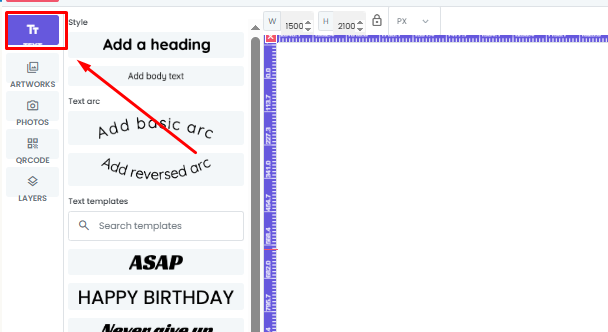
Want to add more text? Click the Text button in the top-left corner to create a new text layer. Once added, you can:
Drag it anywhere on the card
Change the content, font, size, and color
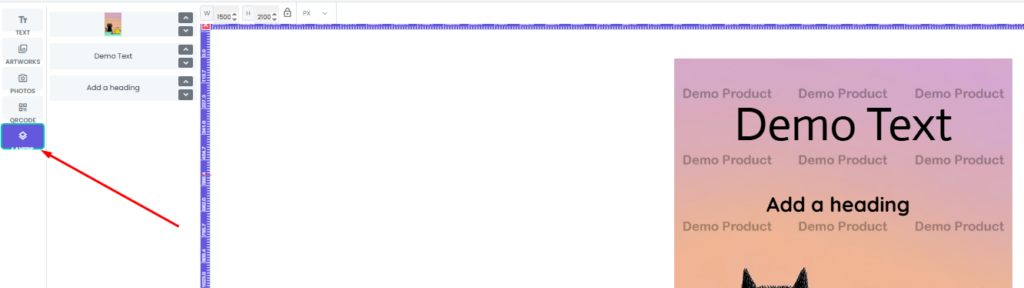
Once you’ve added and edited your text layers, take a look at the Layer panel at the bottom. As shown in the example, there are 3 layers in total. You can freely rearrange them by moving each layer up or down to get the exact look you want.
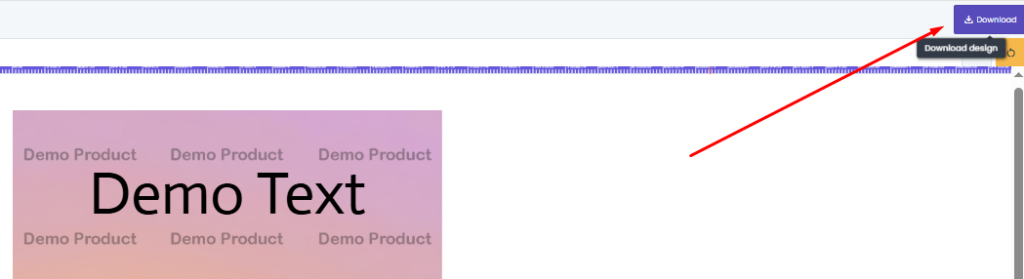
Once you are satisfied with your design, you can download it using the button shown here (desktop browser).
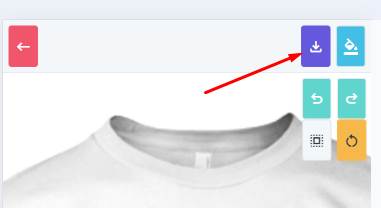
Once you are satisfied with your design, you can download it using the button shown here (mobile browser).
Remember, if you make a mistake while editing, you can click the button shown here to undo and return to the previous step.
If you have any questions or need further assistance, please feel free to contact us at contact@wildtify.com
